

ChatGPT‑5 runs as a unified system inside ChatGPT: a fast model for simple prompts, a deeper GPT‑5 Thinking mode for complex work, and a router that picks the right path automatically. You can still choose Thinking manually when you want extra depth. If you pair this with a short, repeatable routine—Plan → Draft → Verify → Improve—you get stronger first drafts, cleaner structured tables, and safer code with less back‑and‑forth than before. The product also adds real workflow glue: Projects (keep context), Tasks (schedule work), Connectors (pull files from Drive/SharePoint/Notion/GitHub), Canvas (edit with the model on the page), and Deep Research (agentic, cited web research). Plans span Free, Plus ($20), Pro ($200), Business ($25–$30/seat), and—important for India—Go (₹399). Always verify anything that touches money, privacy, or reputation.
This review is written for readers who want practical results, not hype. It explains what changed in GPT‑5, how the changes appear in day‑to‑day work, and how to turn them into reliable outputs you can publish or ship. Each major section starts with a short explanation and then uses bullets only where they reduce cognitive load. To help you adopt GPT‑5 quickly, I share copy‑paste prompts, a lightweight verification mini‑suite, and a plan picker that maps real usage patterns to the right subscription tier. A Sources & References section at the end points to official OpenAI pages so you can confirm pricing, capabilities, and availability without guessing.
What’s New in ChatGPT‑5
GPT‑5 is not just a bigger model. In ChatGPT it functions as a small system: a fast path for quick answers, a deeper GPT‑5 Thinking path for careful reasoning, and a router that decides which path to use based on your request. That design reduces micromanagement—you don’t have to keep telling the model when to “think harder.” For tough prompts you can still select Thinking explicitly. For the hardest questions, GPT‑5 Pro is available on higher tiers. On the developer side, new parameters like verbosity and reasoning effort help right‑size answers and trade off depth for speed when needed.
Highlights you will notice in normal use:
- Unified system & auto‑routing between fast and reasoning modes; you can still pick GPT‑5 Thinking manually.
- GPT‑5 Pro for the hardest problems, exposed on higher‑tier plans when you truly need extended reasoning.
- API controls for builders: verbosity (short/medium/long) and reasoning effort (including a minimal option) to balance speed and depth.
How ChatGPT Helps You Work (Projects, Tasks, Connectors, Canvas, Deep Research)
ChatGPT is no longer just an empty chat box. It now includes product features that carry context, schedule recurring actions, and pull live files into your conversation. These features matter because most real‑world work is repeatable and collaborative. Instead of pasting the same brief over and over or hunting for files, you can centralize everything and let GPT‑5 operate inside that space with fewer resets.
Key pieces and why they reduce rework:
- Projects — Keep chats, files, and instructions together so the model stays on‑topic across sessions. This is invaluable for long documents, research series, or multi‑week builds.
- Tasks — Schedule one‑time or recurring actions such as status summaries, link checks, or reminders. You can edit schedules later without rebuilding prompts.
- Connectors — Securely reference files from Google Drive, SharePoint, Notion, GitHub, and other sources (plan/region limits apply). This cuts time spent copying data around.
- Canvas — An on‑page editing surface for writing and coding with ChatGPT in place, so you can iterate without switching tools or losing context.
- Deep Research — An agent that runs multi‑step, cited research on the open web and produces a structured report you can verify quickly.
An Operating Routine That Works Every Day
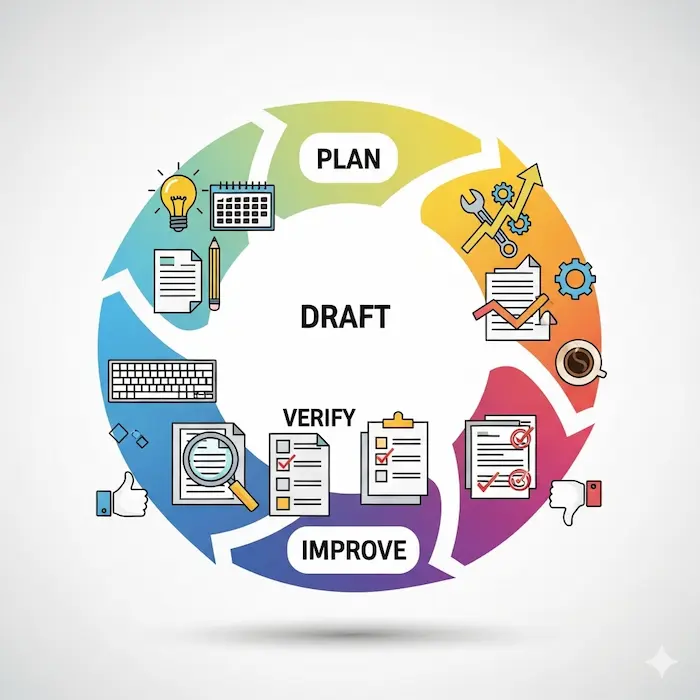
GPT‑5 is easiest to control when you separate thinking from drafting and when you run a verification pass before you accept the result. The routine below is short on purpose; it is simple enough to remember and strict enough to prevent most mistakes. Treat it as the default template for any task that could affect money, compliance, privacy, or reputation.
Plan → Draft → Verify → Improve
- Plan — “Read my brief and propose a 6‑step plan with risks/assumptions. Don’t draft yet.”
- Draft — “Proceed with Step 1 only. Keep headings/tables exactly as specified.”
- Verify — “Recompute totals; list assumptions; cite sources per figure; validate JSON/schema; report errors only.”
- Improve — “Apply only verified fixes. Summarize what changed and why.”
Five Hands‑On Workflows (Prompts + Quick Checks)
These workflows are deliberately mundane. They represent common, repeatable jobs that benefit from GPT‑5’s instruction‑following and long‑context stability. For each one you get a primary prompt and a tiny verification step you can run immediately to confirm the output.
1) Long Document → Publish‑Ready Article (With Sources)
Prompt: “Read the one‑page brief. Propose an outline with word counts. After approval, draft Section 1 only with inline sources. Then verify: list assumptions, recompute any figures, and flag contradictions with suggested fixes.”
Quick check: “List each claim with its source or mark ‘needs source’.”
Why this helps: The model routes itself into deeper reasoning when a task demands structure and factual support. By drafting one section at a time, you prevent blow‑ups, keep tone consistent, and make verification cheaper. Over a full article, this pattern often reduces total edits because issues are caught early and in smaller chunks.
2) PDF Invoices → One Clean Table + Vendor Emails
Prompt: “Extract GSTIN, invoice no., ISO date, taxable value, GST, and total into a single table. If a field is missing, add a ‘reason’ note. Then: (a) recalc totals and show any mismatches; (b) draft emails to vendors requesting missing fields.”
Quick check: “Show deltas for each recomputation; list rows with errors.”
Why this helps: GPT‑5’s structured output is much better when you tell it the exact columns and the reconciliation steps. The verification request (“recompute totals and show deltas”) forces the model to surface inconsistencies you can fix before export.
3) Spreadsheet Cleanup → Consistent CSV
Prompt: “Normalize this export to CSV with headers: Date (YYYY‑MM‑DD), Customer, Item, Qty, Net, Tax, Gross. Coerce numbers; write ‘NA’ for invalid cells; then summarize coercion errors by column.”
Quick check: “Return a tiny table of error counts per column.”
Why this helps: A strict header schema and a required error summary make the output predictable. You can drop the file straight into your BI or accounting workflow and audit the conversion in seconds.
4) Front‑End Fix (Safe and Reversible)
Prompt: “Write minimal CSS to tighten H2 spacing on mobile: H2 top margin ≈1.1em; the paragraph immediately after H2 gets 0.25em top margin. Add a comment header and rollback notes.”
Quick check: “Explain selector specificity and which rules override common WP themes.”
Why this helps: GPT‑5’s front‑end edits are far more stable than earlier releases when you give exact selectors and a rollback plan. Keep diffs small so you can revert quickly if needed.
5) Weekly Status via Tasks (Project‑Wide)
Prompt: “Every Friday 9am, scan my project and summarize: what’s drafted, what needs sources, what failed verification. Then propose a 5‑bullet plan.”
Setup: Create it as a Task in chat and manage timing on the schedules page.
Why this helps: Routine work stalls without nudges. A weekly Task keeps momentum, surfaces blockers, and makes hand‑offs easier because the summary lives with the project rather than in a separate inbox thread.
Verification Mini‑Suite (Keep This at the End of Every Workflow)
GPT‑5 is safer and more honest than earlier releases, but nothing replaces your review. Paste the block below after any draft and run it before you accept or publish the output. If the draft fails any check, loop back to Plan and address the cause rather than patching symptoms.
- Math check — “Recompute all totals; list any delta >0 as ‘before → after’ with the rule used.”
- Assumption check — “List assumptions that could change the answer; tag ‘critical’ vs ‘minor’.”
- Source check — “Add a source per key figure or mark ‘needs SME review’.”
- Schema check — “Validate this JSON against the schema; show only errors with field/line.”

Decision Guide: Which Plan Should You Choose?
The right plan depends on how often you use ChatGPT, whether you collaborate, and whether you need advanced modes like GPT‑5 Pro. Start low and move up when friction appears—either you hit limits or you begin sharing work with others regularly.
- Free — Learning and occasional tasks. Expect usage caps and limited access windows.
- Go (India, ₹399) — A budget step up from Free with higher limits and room for light weekly work.
- Plus ($20) — The best individual upgrade for steady publishing or research; generous access without team admin features.
- Pro ($200) — Built for heavy daily users who need GPT‑5 Pro and higher allowances across modes (voice/video/file sizes may be higher).
- Business ($25–$30/seat) — The moment two or more people collaborate weekly, move here for shared workspaces, admin, privacy defaults, and connectors.
- Enterprise (custom) — For organizations that need SSO, SCIM, granular roles, data residency, and SLAs.
Plans & Pricing
Pricing changes over time, but the official pages list current numbers and limits. Think of the tiers as a ladder. Free and Go cover exploration and light work. Plus covers most individual creators who publish weekly. Pro removes most guardrails for power users and unlocks GPT‑5 Pro. Business adds structure for teams—shared spaces, admin controls, and clearer data boundaries. Enterprise is the governance layer for larger organizations. Always confirm the latest in your account before you purchase, especially for regional availability and taxes.
- Free — access to GPT‑5 with limits; Projects included.
- Go (India) — ₹399/month; budget step up from Free with higher limits.
- Plus — $20/month; expanded access and features for individuals.
- Pro — $200/month; higher allowances and GPT‑5 Pro; API is billed separately.
- Business — $25/seat/month (annual) or $30/seat/month (monthly); 2+ users; shared workspace, admin controls, privacy defaults, connectors.
- Enterprise — custom pricing; advanced security, data controls, data residency options, and SLAs.
Strengths and Watch‑Outs
Strengths first: GPT‑5 plans better, sticks to instructions more reliably, and handles long‑context and tool use with less trial‑and‑error. Structured outputs (tables, JSON) are easier to stabilize when you provide explicit schemas and post‑draft checks. It also right‑sizes detail more predictably when you set expectations or—if you are using the API—when you set verbosity and reasoning effort.
Cautions: Fast‑moving facts still require verification. Novel data can produce formatting slips unless you pin schemas and ask for a validation report. Product features like Tasks and Connectors vary by plan and region, so confirm availability inside your account. Finally, any workflow that touches money, privacy, or reputation should always include the verification mini‑suite and a human sign‑off.
Prompting Tips That Save Time
Good prompts are specific about inputs, outputs, and checks. Great prompts also constrain failure modes. The three patterns below cover most everyday needs and reduce avoidable rework.
- Scope the draft — “Draft Section 1 only; keep headings/tables exactly as specified; do not invent numbers or sources.”
- Constrain structure — “Return a single table with these exact headers; if a value is missing, write NA and add an explanation column.”
- Attach checks — “After the draft, run math/source/schema checks and show only the errors with the fix you recommend.”
Metrics and Self‑Learning: How to Track Gains
You cannot improve what you do not measure. Track three simple metrics for four weeks and you will know whether GPT‑5 is saving time and reducing errors for your specific use case.
- Edit rate per draft (%) — Aim to cut this by a third after two weeks of using the routine.
- Time to first usable draft (minutes) — Target a steady decline as prompts and structure stabilize.
- Verification defects (# per piece) — Strive for zero critical defects after verification; log recurring issues and update prompts.
Quick Start (10 Minutes)
- Pick a plan (Free/Go/Plus/Pro/Business).
- Create a Project; add your brief, files, and instructions.
- Draft with Plan → Draft → Verify → Improve (one section at a time).
- Add a weekly Task for status and next steps.
- Connect Drive/SharePoint/GitHub if relevant to keep files in context.
Why This Review Stands Out
Most reviews restate features. This one shows you how to use them with reproducible workflows, verification prompts, and a decision guide that maps real usage to the right plan. It also includes India’s Go plan, which many international roundups skip, and emphasizes Projects/Tasks/Connectors/Canvas/Deep Research—the real sources of day‑to‑day leverage.
Conclusion
ChatGPT‑5 is more than a faster model; it is a small system—fast + Thinking + routing—wrapped in product features that cut rework in real teams. If you adopt the Plan → Draft → Verify → Improve routine, pin your schemas, and keep a weekly Task to maintain momentum, you will feel the upgrade in fewer edits, clearer tables, and safer code. Choose the plan that matches your workload today, and move up only when your constraints are real—not hypothetical. That discipline is what turns GPT‑5 from a neat demo into a dependable work partner.
FAQ-ChatGpt
What is GPT‑5 Thinking?
It is a deeper reasoning mode used when a request benefits from careful analysis. ChatGPT can auto‑route to it, and you can also choose it explicitly when you want extra depth.
What is GPT‑5 Pro?
A higher‑compute variant exposed on upper tiers and intended for the hardest prompts where longer reasoning helps produce a more comprehensive answer.
Do I need to enable Thinking manually?
No. The system can switch automatically when the prompt requires it. You can still select the Thinking model or simply ask the model to “think hard” when you want to force depth.
What are Projects and why use them?
Projects bundle chats, files, and instructions so context persists across sessions—ideal for long documents and repeatable workflows.
Can I schedule recurring work?
Yes. Use Tasks to run weekly summaries, checks, or reminders, and manage them on the schedules page without rebuilding prompts.
Can ChatGPT connect to Drive/SharePoint/Notion/GitHub?
Yes, via Connectors. Availability and limits vary by plan and region. Connectors let you search and reference files directly in chat.
What is Canvas in ChatGPT?
Canvas is an on‑page editing surface for writing and coding alongside the model so you can iterate without switching tools or losing context.
What is Deep Research?
An agentic, multi‑step web research feature that synthesizes sources into a cited report. Always run your verification pass before relying on it.
Does Free include GPT‑5?
Yes, with usage limits. Paid tiers raise limits and may unlock additional modes such as GPT‑5 Pro.
What are current prices?
Plus $20/month, Pro $200/month, Business $25/seat (annual) or $30/seat (monthly). India also has Go at ₹399/month and INR billing for Plus/Pro.
Is usage really “unlimited” on Pro?
Pro advertises unlimited GPT‑5 subject to abuse and fair‑use guardrails. Always review your live limits page for current allowances.
Are connectors safe for business use?
Business/Enterprise exclude customer data from training and provide admin controls for roles, connectors, and permissions. Follow your organization’s data policy.
Can I make replies shorter by default?
Developers can set verbosity and minimal reasoning effort in the API. In ChatGPT, simply ask for a concise answer or a summary.
Where do I see the latest plan changes?
Check the official ChatGPT Pricing page and the Release Notes to confirm current features and regional availability.
Does a ChatGPT subscription include API access?
No. API usage is billed separately under the API pricing schedule.
Which plan should I buy?
Plus for steady individual work; Pro if you need GPT‑5 Pro and heavy daily usage; Business when two or more people collaborate weekly and you need admin + connectors.
Disclaimer
This review is independent and for general information only. It reflects features, limits, and pricing available at the time of writing, which may change without notice—please verify details on OpenAI’s official pages before purchasing or making business decisions. Nothing here is legal, financial, tax, security, or technical advice; evaluate suitability for your own situation and seek professional advice where needed. While care has been taken to ensure accuracy, no guarantees are made and no liability is accepted for errors, omissions, or outcomes from actions based on this content. Some links may be affiliate links; if you use them, I may earn a small commission at no extra cost to you. “OpenAI” and “ChatGPT” are trademarks of their respective owners.